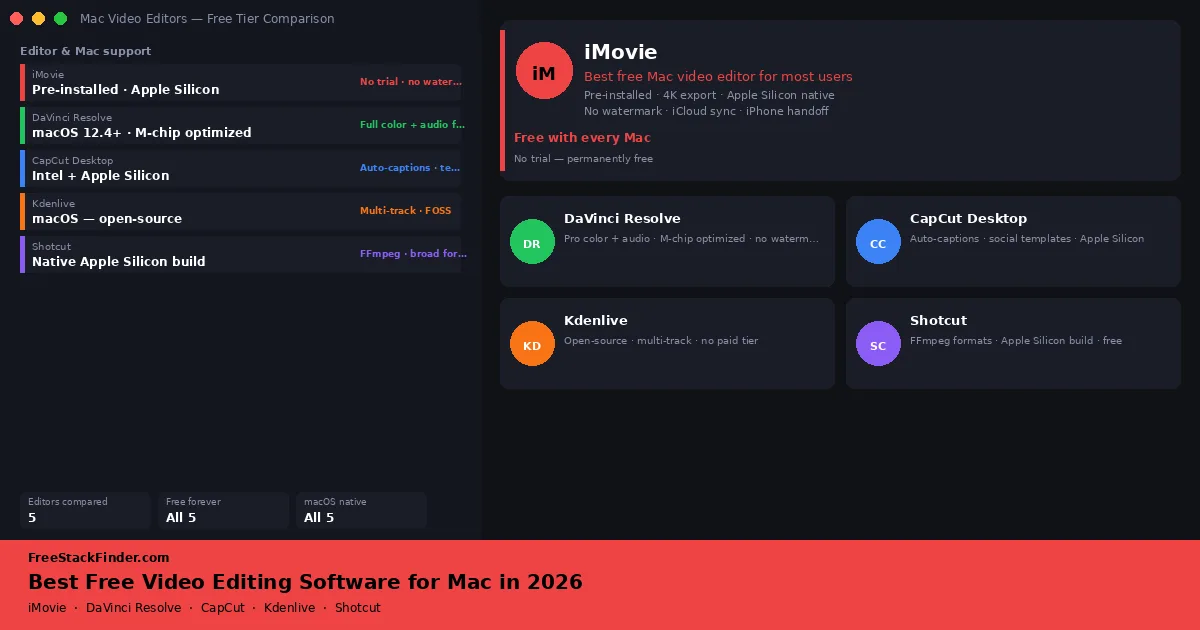
Mac users can download iMovie at no charge, while several cross-platform editors also publish native Mac builds. iMovie handles straightforward cuts, titles, soundtracks, green-screen effects, and supported 4K footage, but it does not provide the multicamera, tracking, audio, and finishing controls found in larger editors.
DaVinci Resolve and CapCut have native Mac builds. Kdenlive now publishes separate Apple Silicon and Intel downloads, while Shotcut also supports both architectures. Check each editor’s current operating-system requirement before downloading because an older Mac may need an earlier release.
This guide covers what works well on Mac, what is free (no watermarks, no trial expirations), and what to watch out for on macOS specifically.
Your Mac and footage set the practical limit
Use iMovie for occasional family videos or short social content. DaVinci Resolve is the next step when you need deeper editing, color, audio, or effects controls, and it runs natively on Apple Silicon. CapCut Desktop fits short-form social output. Choose Kdenlive for an open-source timeline, but expect more macOS-specific setup than on Linux. Keep Shotcut in mind when unusual footage will not import elsewhere.
| Tool | Mac support | Free tier | Best for | Main catch |
|---|---|---|---|---|
| iMovie | Mac App Store: requires macOS 15.6+ | Fully free, no watermark, no trial | Casual editing, beginners, Apple device users | No true multicamera editor or advanced tracking |
| DaVinci Resolve | Native: macOS 14+ for Resolve 20 | Full timeline, color, audio: no watermark | Serious editing, color work, longer projects | Hardware-demanding; some codecs and tools require Studio |
| CapCut Desktop | macOS app: Intel + Apple Silicon | Free editing, auto-captions, templates | Short-form social content, fast turnaround | Watermark risk with stock assets; account required |
| Kdenlive | macOS 13+; separate Silicon and Intel builds | Fully open-source, multi-track, no watermark | Open-source users, mid-complexity projects | Interface and setup differ from Apple-native editors |
| Shotcut | macOS: Intel + Apple Silicon native builds | Fully open-source, broad format support | Format compatibility, unusual codecs | Steeper learning curve; older-feeling interface |
The Mac advantage: what you already have
iMovie is a free download from the Mac App Store and may already be installed on some Macs. It handles supported 4K footage, basic color controls, transitions, titles, and multi-clip timelines. It also connects to Apple media libraries and can import projects started in iMovie on an iPhone or iPad.
The reason people look for alternatives usually comes down to one of four things: the timeline gets too complex, they want real color grading, they are shooting LOG footage from a mirrorless camera, or they want professional motion graphics. At that point, iMovie’s free-tier ceiling becomes a genuine obstacle.
Final Cut Pro is not a permanent free option. Apple offers a trial and paid access, so this guide does not count it among the free editors. Check Apple’s current Final Cut Pro page for purchase and subscription options.
The free editors for Mac, in depth
iMovie: Apple’s free starter editor
iMovie is available at no charge from the Mac App Store. The current version includes a timeline, color controls, stabilization, speed adjustments, picture-in-picture, side-by-side layouts, green-screen compositing, and exports up to 4K on compatible Macs. Projects started on iPhone or iPad can be imported into the Mac timeline.
The current App Store release requires macOS 15.6 or later, 4GB of memory, and 3.5GB of storage. Owners of older Macs should check whether a compatible earlier version is already associated with their Apple account.
What is missing: a true multicamera editor, general-purpose motion tracking, user-controlled proxy workflows, advanced audio mixing, and third-party effect plugins.
iMovie fits family footage, travel videos, short social posts, and basic business content when its timeline and export controls cover the project.
Who should skip it: Editors who need synchronized multicamera switching, detailed color management, advanced audio mixing, or a plugin-based effects workflow.
DaVinci Resolve (free): professional editing at no cost
Blackmagic Design offers DaVinci Resolve as a free product rather than a time-limited trial. The free version includes the editing timeline, color grading, Fairlight audio, and Fusion visual effects.
Mac requirements: DaVinci Resolve 20 requires macOS 14 Sonoma or later. It supports Apple Silicon and Metal-capable GPUs; performance still depends on the footage, effects, resolution, and available memory.
Free tier includes: full color grading, full audio mixing (Fairlight), Fusion VFX integration, multi-track timeline, no watermark, no trial expiration.
The free tier omits features available in Studio, including AI noise reduction and support for some higher-end formats and workflows. Blackmagic’s current comparison says the free version supports common 8-bit formats up to Ultra HD at 60 fps; test representative 10-bit or RAW footage before choosing it.
If full-resolution playback stutters, try Resolve’s proxy or optimized-media workflow with a representative project before deciding whether the hardware is suitable.
DaVinci Resolve fits editors who need deeper timeline, color, audio, and effects controls than iMovie. Test its workflow and performance before moving an active project.
CapCut Desktop: fast social editor for Mac
CapCut is a ByteDance product for TikTok, Instagram Reels, and YouTube Shorts. The Mac version combines its template library and auto-caption tools with a multi-track timeline and Apple Silicon support.
Free tier includes: basic multi-track editing, auto-captions, speed ramping, sound effects, background removal, and access to the template library.
What to watch for: Templates, effects, and stock assets can carry separate free or Pro labels, so check the export before building a project around them. CapCut’s ownership structure also means some organizations and schools restrict it on institutional devices.
CapCut fits short-form work that depends on templates and automatic captions more than a conventional timeline.
Who should skip it: Anyone editing branded work, corporate content, or longer productions. Also not the right choice if the ByteDance association or account requirement is a concern for your organization.
Kdenlive: open-source multi-track editor
Kdenlive is a KDE project with a multi-track timeline, proxy clips, color scopes, audio tools, and an effects library. It is open-source and does not have a paid feature tier or export watermark.
The current download requires macOS 13 Ventura or newer and provides separate Apple Silicon and Intel builds. The interface follows Kdenlive’s cross-platform conventions rather than Apple’s editing conventions.
Free tier includes: everything. Multi-track timeline, proxy clips, color scopes, audio mixing, effect library, export presets. No paid tier exists.
Kdenlive fits editors who want an open-source multi-track timeline and proxy workflow without moving to Resolve.
Who should skip it: Anyone who needs an Apple-native interface or depends on project interchange with a commercial editing suite.
Shotcut: format-first open-source editor
Shotcut is a cross-platform open-source editor built on FFmpeg, giving it broad input-format support. It provides Mac builds for both Intel and Apple Silicon.
Free tier includes: the complete open-source editor with no paid version or watermark. Codec support follows the formats enabled in its FFmpeg-based build.
Shotcut’s source-clip-to-timeline workflow differs from many current editors, and its interface may take time to learn. Test the basic import, trim, timeline, and export path before committing a project.
Shotcut fits mixed-device footage or formats that another editor rejects. It can also transcode a source file before editing elsewhere.
Who should skip it: Anyone who wants an editor built around guided workflows and social templates. Shotcut makes more sense when broad format compatibility is the problem.
Who should stay with iMovie
Consider staying with iMovie when the workflow looks like this:
- Straightforward cuts from one main camera
- Footage imports correctly and plays smoothly on the Mac you own
- Titles, music, voiceover, stabilization, and simple compositing cover the edit
- The delivery does not require multicamera switching, advanced audio, or a plugin pipeline
The common mistake is downloading DaVinci Resolve because it sounds more professional, spending a week navigating an unfamiliar interface, and then going back to iMovie for the actual project. The goal is finished videos, not editing environment fluency. If iMovie does the job, use it.
Common mistakes when picking a free Mac video editor
Ignoring hardware requirements. DaVinci Resolve asks more from the GPU and memory than iMovie. Choose for the Mac and footage you own, and use proxies when playback calls for them.
Treating compatibility as proof of fit. Test a clip from the actual camera, then render a short sample with the effects and captions you expect to use.
Skipping the codec check. Verify the exact codec, bit depth, frame rate, and container before a deadline, especially when evaluating Resolve Free against Studio.
Counting a trial as a free plan. Final Cut Pro, Adobe Premiere Pro, and Camtasia may offer evaluation periods, but none is an ongoing free editor.
Switching to Mac from a Windows video editing workflow
If you are migrating from Windows, the biggest practical adjustments are workflow-level rather than feature-level:
From Adobe Premiere Pro: DaVinci Resolve is the closest feature equivalent with a genuine free tier. Resolve’s Cut and Edit pages resemble Premiere’s bin-and-timeline structure, and most conceptual knowledge transfers: the adjustment is interface navigation, not methodology. Our guide to free Premiere Pro alternatives covers the transition in more detail.
From Vegas Pro: Shotcut has a similar clip-based approach and is worth checking first if your Vegas habits are hard to change.
From Windows Movie Maker or similar: iMovie is the closest match in workflow and complexity.
Project files from Premiere, Vegas, and Windows Movie Maker do not import directly into any of these editors. Plan to rebuild from original source media rather than salvaging project files.
iMovie for simple cuts, Resolve for deeper finishing
Start with iMovie when it is compatible with your Mac and its timeline covers the project.
When you outgrow iMovie, DaVinci Resolve adds deeper timeline, color, audio, and effects controls while running natively on Apple Silicon. Use proxy media on older or lower-RAM hardware when full-resolution playback stutters.
Use CapCut Desktop if short-form social content is your primary output: it is purpose-built for that workflow and wastes time on longer productions.
For an open-source multi-track editor, try Kdenlive. Shotcut is another option when broad FFmpeg-based format support is the priority. Test either with the footage and export settings that matter to the project.
For a broader look at free editors across all platforms, see our guide to the best free video editing software in 2026. If you are coming specifically from Adobe’s suite, the Premiere Pro alternatives guide covers that transition in detail. For recording your screen or camera before you edit, the free screen recording software guide covers the capture side of the workflow.