Recording length separates the options
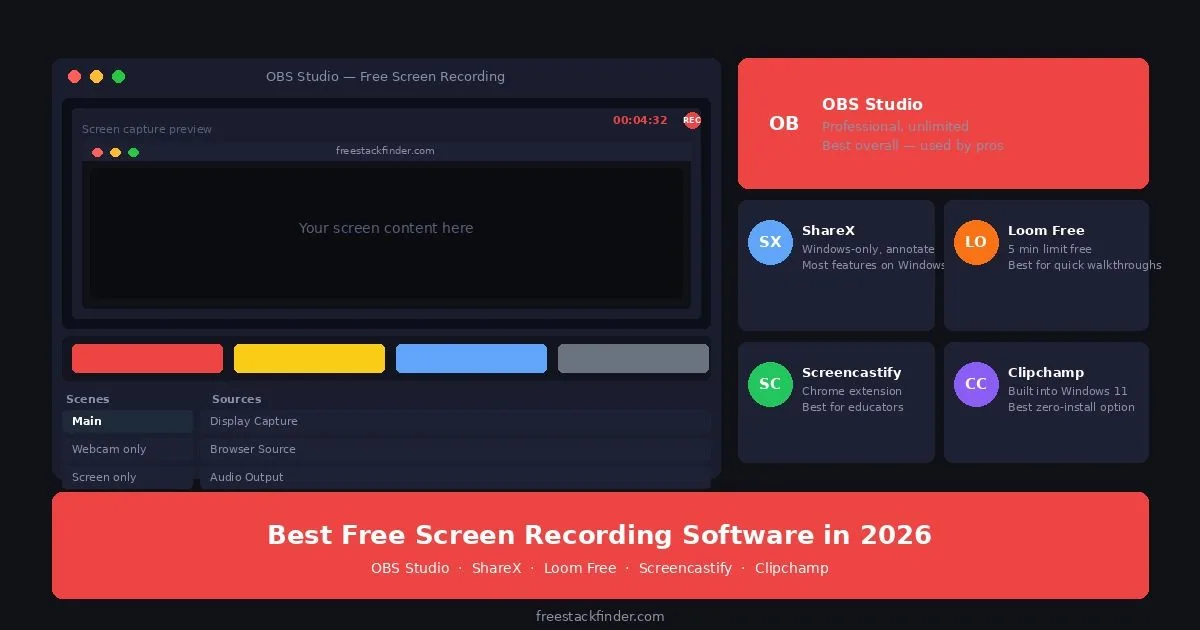
Loom’s free plan restricts recordings to 5 minutes and stores up to 25 videos. Choose OBS Studio for unlimited recording without a watermark, ShareX on Windows when screenshots and annotation belong in the same workflow, and Loom Free when a hosted viewer link matters more than recording length. Screencastify Free fits short classroom recordings made in Chrome.
Tutorials and product demos usually need recording length, export quality, and webcam overlay control, which points to OBS. Quick bug reports and async meeting updates often need cloud sharing more than editing depth, which is where Loom still earns a place. Windows users who capture screenshots and clips all day should look at ShareX before adding another single-purpose recorder.
Recording caps and storage change the choice
Loom combines recording, cloud hosting, and a shareable viewer link in one workflow, while OBS Studio saves local files and requires a separate sharing step. Loom’s current Starter plan allows 25 videos per person and five minutes per screen recording.
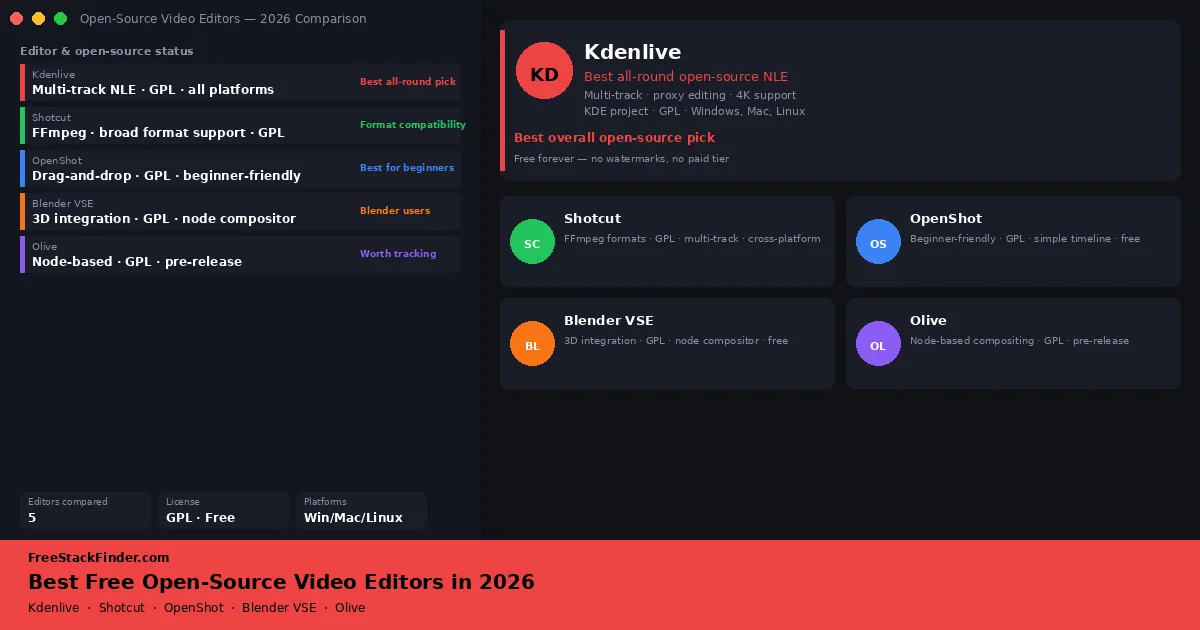
OBS Studio and ShareX can record to local files without a service-imposed duration cap. Clipchamp is a simpler browser and Windows option, but each screen or webcam recording is limited to 30 minutes. For editing recorded footage after capture, see our free video editing software guide for editors that work with OBS output files.
Five recorders for different capture jobs
1. OBS Studio: local recording without a service cap
OBS Studio is a free, open-source screen recording and live streaming application for Windows, macOS, and Linux.
What you can record for free:
- Unlimited recording length: no time caps
- No watermarks on output
- Record screen, webcam, or both simultaneously
- Multiple scene configurations (switch between layouts mid-recording)
- Audio mixing: capture desktop audio, microphone, or both independently
- Output formats: MKV, MP4, MOV, FLV, and more
- Output resolution can be configured to match the source and available hardware
- Available on Windows, macOS, and Linux
- Open-source software with no paid tier
Where you handle it yourself:
- No built-in cloud hosting or shareable link: recordings save locally, you host them yourself
- Steeper setup curve than Loom or Screencastify: requires initial configuration of scenes and sources
- No built-in annotation tools during recording
- No automatic transcription or AI-generated summaries
OBS Studio fits local, watermark-free recording for tutorials, product demos, and videos that exceed Loom’s five-minute limit. It also provides direct control over output quality and format.
OBS Studio supports the recording setups used for professional production while remaining free. Its scenes and sources system can hold several configurations, such as screen only, webcam overlay, and presentation mode. The audio mixer controls desktop and microphone levels separately. That flexibility is unnecessary for a quick clip, but useful when a recording workflow becomes more involved.
2. ShareX: best free screen recorder for Windows power users
ShareX is a free, open-source screen capture and screen recording tool for Windows with annotation, workflow automation, and configurable upload destinations.
What you can capture for free:
- Unlimited screen recording: no watermarks, no time limits
- Screenshot capture with instant annotation tools (arrows, text, blur, highlight)
- Scrolling capture for long web pages
- GIF recording
- Optical character recognition (OCR) on screenshots
- Configurable uploads to supported storage and image services
- Hotkey customization for every function
- Workflow automation: capture, annotate, and upload in one keystroke
The practical limit:
- Windows-only: no macOS or Linux support
- Interface is complex: the breadth of features makes it harder to learn than simpler tools
- No built-in cloud hosting with a shareable viewer link
ShareX fits Windows users who want screen recording and screenshot annotation in one utility, with configurable shortcuts for frequent captures.
Workflow tradeoff: ShareX combines recording, annotation, OCR, and configurable uploads in one Windows application. It is excessive for basic recording but can replace separate capture and annotation tools for someone who needs those steps regularly.
3. Loom Free: best for quick shareable recordings under 5 minutes
Loom Free is a cloud-based screen recording tool with an automatic shareable link, built-in viewer, and asynchronous video messaging features.
What you can share for free:
- Recordings up to 5 minutes in length
- Up to 25 videos in total storage
- Automatic shareable link generated after recording
- Clean in-browser viewer with comment and reaction support
- Screen, camera, or screen-plus-camera recording modes
- Chrome extension and desktop app available
- Basic transcript (AI-generated, accuracy varies)
The practical limit:
- 5-minute recording limit: hard cap, cannot be extended on free
- 25 video storage limit: oldest videos must be deleted to make room
- No custom branding or viewer customization on free
- Download of recordings requires paid plan on some configurations
- Drawing tools during recording require paid
Loom Free fits short asynchronous updates, design feedback, and brief product walkthroughs that stay within five minutes. Its main distinction is the hosted share link rather than local recording depth.
Loom’s shareable link experience is better than OBS or ShareX for quick communication. A Loom link opens in a browser, plays immediately, and allows the recipient to comment and react without downloading anything. For internal team communication where videos are short and the recipient experience matters, Loom’s 5-minute free tier covers the use case. For anything longer, OBS is the answer.
4. Screencastify: ten browser recordings on the free plan
Screencastify is a browser-based recorder aimed in part at educators. Its current Free plan allows up to ten videos, each up to 30 minutes.
What Chrome records for free:
- Up to 10 videos, limited to 30 minutes each
- Screen, browser tab, or webcam recording
- Saves directly to Google Drive
- Basic annotation during recording (pen tool)
- Shareable Google Drive link after recording
- Works entirely in Chrome: no desktop app download required
The free recording path has these limits:
- Watermark on free recordings
- Advanced editing features require paid
- MP4 export is not listed for the free tier
- Only works in Chrome: no other browser support
Screencastify fits Chrome-based lessons or feedback distributed through Google Classroom or Drive. The recording can remain in the same Google workflow.
Screencastify keeps the path short: install the Chrome extension, record, and send the Google Drive link. The watermark on free recordings is the main trade-off. It matters less for a classroom explanation than for a client-facing video.
5. Clipchamp: recording and basic edits in one project
Clipchamp is Microsoft’s video creation tool, built into Windows 11, which includes a screen recorder alongside basic video editing features.
What Windows gives you for free:
- Screen and webcam recordings up to 30 minutes per clip
- Webcam recording
- Basic video editing: cut, trim, text overlay, transitions
- Export at 1080p on free
- No watermarks
- Available in a browser and through the Windows app
Where it stays basic:
- Limited to basic editing, not a full video editor
- Premium stock footage and music require paid Microsoft subscription
- Fewer recording-quality controls than OBS
- Requires a supported browser or the Windows app
Clipchamp fits a short capture that needs trimming in the same editor. Microsoft’s current recording guide documents the 30-minute per-clip ceiling.
Workflow tradeoff: Clipchamp combines capture and a basic editing timeline. Choose it for recordings under 30 minutes when OBS’s scenes, sources, and audio routing would add unnecessary setup.
Compare recording limits and platforms
| Tool | Time limit | Watermark | Platform | Cloud hosting | Best for |
|---|---|---|---|---|---|
| OBS Studio | ✅ Unlimited | ✅ None | Win/Mac/Linux | ❌ Local only | Most users: unlimited recording |
| ShareX | ✅ Unlimited | ✅ None | Windows only | ⚠️ Via upload | Windows power users, annotation |
| Loom Free | ⚠️ 5 minutes | ✅ None | Win/Mac/Chrome | ✅ Yes | Quick async video messages |
| Screencastify | ⚠️ 10 videos; 30 minutes each | ⚠️ Has watermark | Browser | ✅ Shareable link | Short browser recordings |
| Clipchamp | ⚠️ 30 minutes per clip | ✅ None | Browser/Windows | ❌ Local unless backed up | Recording plus basic edits |
A basic OBS Studio setup
OBS Studio exposes controls for streaming and multiple sources. A basic local recording needs one display or window source and an output path:
Open OBS. In the Sources panel, click the + icon and select Display Capture for the whole screen or Window Capture for one app. Add a Video Capture Device source if you also need a webcam. In Settings > Output, choose the recording path and format. OBS’s recording guide recommends MKV because an interrupted recording is less likely to lose the whole file; OBS can remux the finished file to MP4 for editing or sharing.
Scenes, transitions, and separate audio sources are optional for a single-screen recording. Check the microphone and desktop-audio meters before starting so the saved file contains the tracks you expect.
When a paid recorder earns its cost
Paid screen recording tools such as Loom Business, Camtasia, and ScreenFlow add built-in editing, chapter markers, interactive elements, and team management. They make sense for client-ready course content or product demos when moving recordings into a separate editor takes too much time.
OBS Studio covers local recording without a service-imposed length or storage quota. A paid tool earns its cost when hosted delivery, transcript editing, viewer analytics, or team administration removes a recurring manual step.
Match the recorder to the output
Choose OBS Studio for local recordings that need to exceed five minutes or use a specific format. Use Loom Starter for short clips that need a hosted viewer and comments, ShareX on Windows when annotation belongs in the capture workflow, and Clipchamp when a 30-minute clip needs basic editing in the same project.
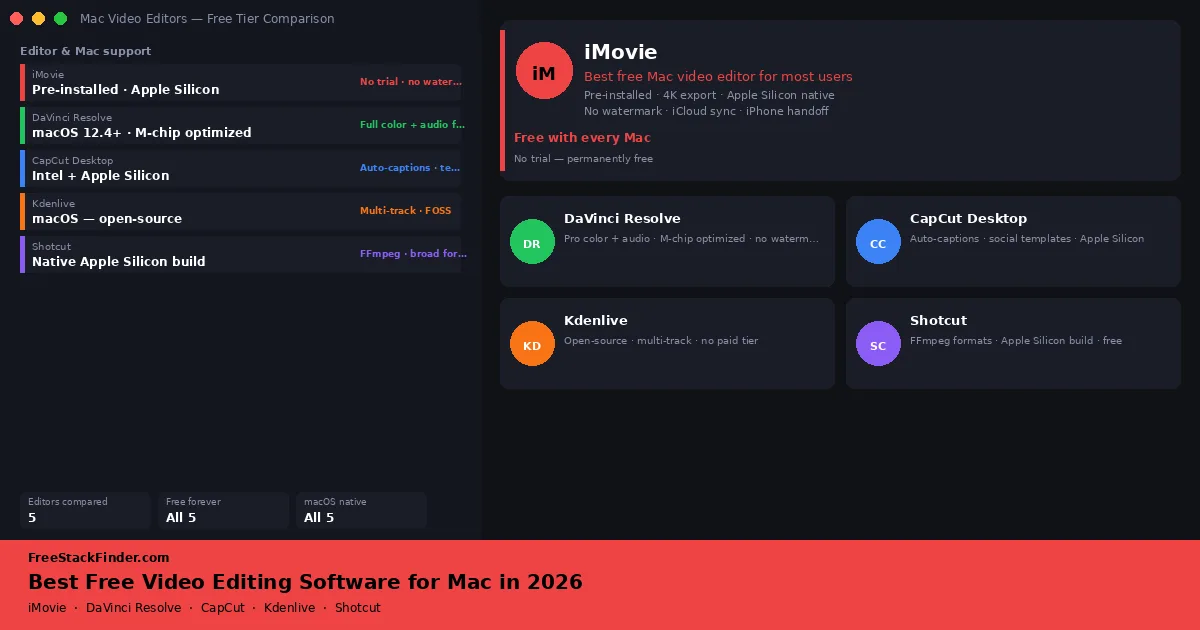
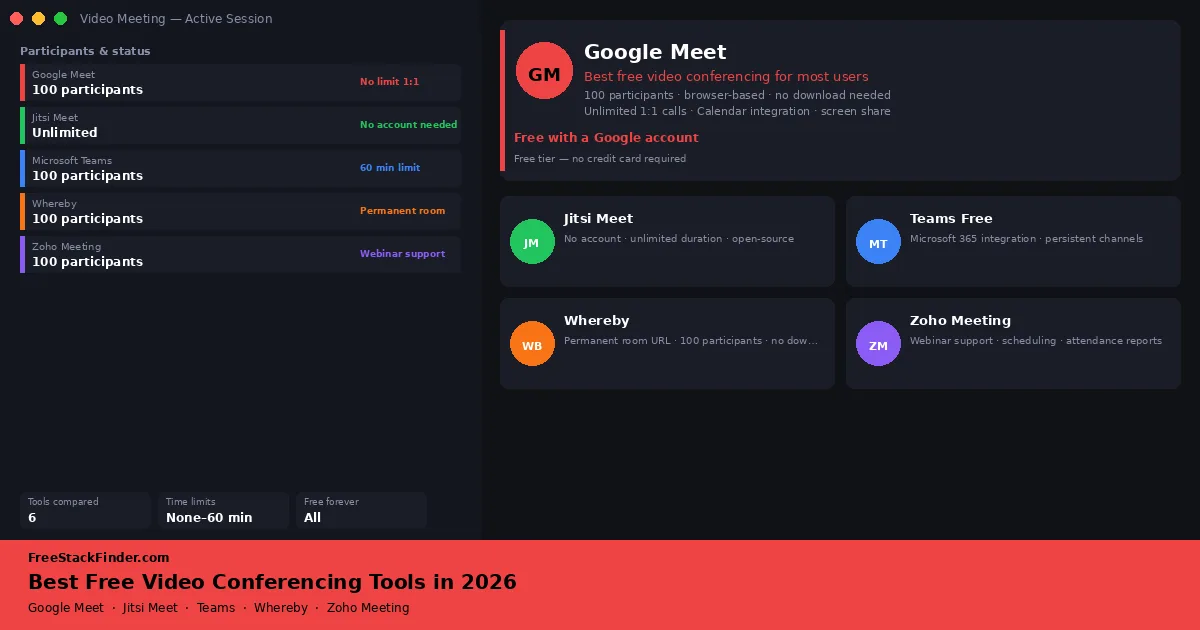
For walkthroughs recorded during a live meeting, compare the meeting limits in our free video conferencing guide. Audio can make a clear screen capture hard to follow when a laptop microphone also picks up room noise, fan sound, and keyboard clicks. If that is happening, compare a USB microphone with moving the laptop closer and reducing background noise before buying other recording hardware.
Upgrade your recording audio with a USB microphone
If a laptop microphone captures fan noise, room echo, or keyboard clicks, compare a USB microphone with repositioning the computer and reducing background noise.
Shop USB microphones on Amazon →