Occasional text edits, annotations, forms, signatures, merging, and compression do not need an Acrobat Pro subscription; free tools handle all of them. The subscription makes more sense for daily PDF production. Check Adobe’s current pricing if cost is the deciding factor.
“Free PDF editor” covers browser tools with usage limits, full desktop applications, and annotation-only apps. Start with the edit you need and whether the file can leave the device.
The edit determines the tool
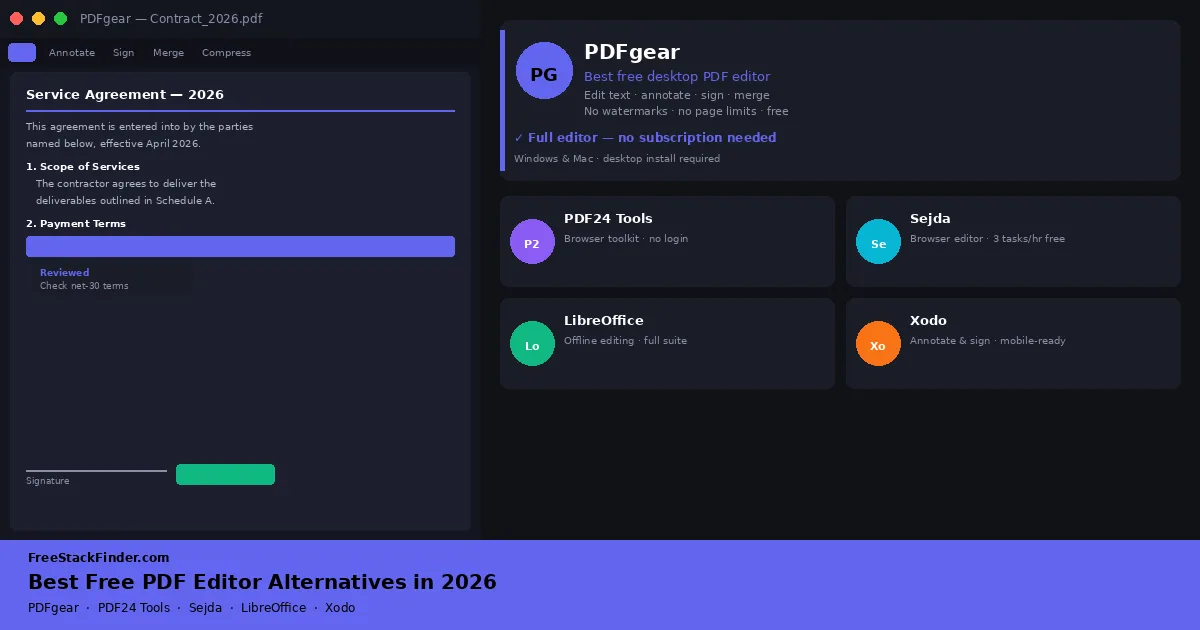
PDFgear is a desktop application for text and layout edits without a watermark or page cap. PDF24 Tools handles browser-based conversions and one-off changes. Sejda is a web editor with usage limits, LibreOffice Draw keeps basic layout work offline, and Xodo focuses on annotation and signing on mobile.
| Tool | Best for | Free plan | Main limitation |
|---|---|---|---|
| PDFgear | Most users needing a full editor | Full desktop app, no watermarks | Desktop install required |
| PDF24 Tools | Quick browser-based tasks | Unlimited tools, no account required | Browser-only, slower for large files |
| Sejda | Moderate weekly PDF work | 3 tasks per hour, 200 pages per file | Task limits on free plan |
| LibreOffice Draw | Offline editing, existing LibreOffice users | Full desktop suite, no limits | Complex editing flow for non-technical users |
| Xodo | Annotation and signing on mobile | Full annotation and form filling free | Limited text editing beyond annotations |
Five free PDF editors and toolkits
1. PDFgear: best free desktop PDF editor
Best overallPDFgear covers text editing, annotations, form filling, signing, merging, splitting, compressing, and converting on Windows and Mac, with no watermark and no account for basic use.
What the free tier handles:
- Edit existing PDF text directly (add, modify, delete)
- Add and edit annotations: highlights, comments, shapes, stamps
- Fill out PDF forms
- Add e-signatures (draw, type, or image upload)
- Merge multiple PDFs into one
- Split a PDF into separate files
- Compress PDF file size
- Convert PDF to Word, Excel, image formats
- OCR for scanned documents
- No page limits, no watermarks, no login required for basic use
Where the free tier stops:
- Some advanced AI-powered features need an account
- The mobile app has fewer features than the desktop version
- Full editing needs the desktop app; PDFgear’s browser tools cover simpler one-off tasks
It suits people who regularly handle contracts, invoices, or forms and want a desktop editor without an Acrobat subscription. Many free PDF editors add watermarks, cap pages, or charge for editing. PDFgear’s free tier has none of those limits for basic use, and its interface is closer to Acrobat than most open-source alternatives.
Visit PDFgear (opens in a new tab)
2. PDF24 Tools: best browser-based PDF toolkit
Best for quick tasksPDF24 Tools puts more than 25 PDF utilities in the browser, and none of them asks for an account.
Included without an account:
- Over 25 distinct PDF tools accessible from the browser
- Merge, split, compress, rotate, convert, and password-protect PDFs
- PDF to Word, Excel, image, and back
- OCR for scanned files
- Basic annotation tools
- No account required to use any tool
- Files are deleted from servers after processing
Where the web tools struggle:
- Each tool handles one task at a time, so long text edits are awkward
- Slower with large files and batches than a local desktop app
- The PDF24 desktop app is also free but more limited than PDFgear in editing depth
It is built for the quick job: compressing a file before emailing it, merging two files, or converting a scan to text without installing software. The number of tools in a single free, no-login interface is hard to match. For occasional PDF work and file format conversions, PDF24 Tools avoids extra setup.
Visit PDF24 Tools (opens in a new tab)
3. Sejda: best web editor for moderate use
Good for occasional workSejda edits PDF text and fills forms in the browser, two tasks that many free web tools limit to annotations. It rations the free tier by the hour instead.
Free within the hourly limit:
- Text editing directly in PDFs
- Add text, images, shapes, and highlights
- Fill and sign PDF forms
- Merge, split, compress, and convert PDFs
- Whiteout tool to remove or cover content
- 3 tasks per hour, files up to 200 pages and 50 MB
Limits to plan around:
- Task limits (3 per hour) can be reached quickly during active PDF sessions
- Premium tier required for unlimited use
- Processing happens on Sejda’s servers; do not upload confidential documents
That allowance suits someone who handles PDFs a few times a week and wants a browser editor without installing software.
Visit Sejda (opens in a new tab)
4. LibreOffice Draw: best for offline power users
Best offline optionLibreOffice Draw opens a PDF as an editable drawing, so text, images, and shapes can be changed like objects in a layout. It ships with LibreOffice, the free Microsoft Office alternative suite, and works entirely offline.
What it can do with a PDF:
- Open any PDF as an editable file
- Modify text, images, shapes, and layout elements
- Export back to PDF
- Full vector drawing and layout tools
- Completely offline: no server processing
- No page limits, no watermarks, no account
- Available on Windows, Mac, Linux
Where it struggles:
- Editing complex PDFs can produce cluttered layers: best for documents created in office tools rather than design-heavy PDFs
- Steeper learning curve than a dedicated PDF editor: the interface is designed for drawing, not PDF review
- No form-filling or e-signature workflow built in the way dedicated PDF tools provide it
It makes sense for people who already have LibreOffice installed and occasionally need to change PDF text or layout, and in workplaces where cloud-based PDF processing is not allowed. Because nothing leaves your machine, it is the most privacy-preserving option here. Our free spreadsheet alternatives guide covers the rest of the suite.
Visit LibreOffice (opens in a new tab)
5. Xodo: best for annotation and signing on mobile
Xodo is built for marking up and signing rather than editing. Its free Xodo PDF Reader runs on Windows, macOS, Linux, iOS, and Android.
Free in the reader:
- Highlight, underline, strikethrough, and comment on PDFs
- Fill out interactive PDF forms
- Create and apply e-signatures
- Annotate PDFs shared with collaborators
- Works across mobile and desktop
Where it stops:
- Limited text editing beyond adding annotations, not designed for editing existing PDF body text
- Cloud sync requires account creation
- The browser tools allow one free action per day; unlimited web use requires a paid plan
- Some advanced features require paid upgrade
Students reviewing documents, professionals signing contracts, and teams reviewing drafts all read and sign more than they edit, which is the work Xodo is built around.
Visit Xodo (opens in a new tab)
Compare local and browser-based PDF editing
| Task | Best free tool |
|---|---|
| Edit PDF text | PDFgear (desktop) or Sejda (browser) |
| Annotate and comment | Xodo or PDFgear |
| Fill and sign forms | PDFgear, Xodo, or Sejda |
| Merge or split PDFs | PDF24 Tools or PDFgear |
| Compress a large PDF | PDF24 Tools or PDFgear |
| Convert PDF to Word | PDFgear or PDF24 Tools |
| Edit offline, no account | LibreOffice Draw or PDFgear |
| Quick browser task, no install | PDF24 Tools or Sejda |
When the free edit stops working
Most users do not need to pay for PDF software. The free tools above cover the tasks that come up most often: editing, annotating, signing, merging, and compressing files.
Consider a paid tool when:
- You process high volumes of PDFs daily in a professional workflow (legal, finance, document-heavy operations)
- You need advanced redaction, certified signatures, or compliance-grade audit trails
- Your organization requires integration with document management systems or enterprise DMS platforms
- You work with heavily designed or print-ready PDFs where precise layout control matters
Three of the five tools here have no paid tier, so the real comparison is Sejda, Xodo, and Acrobat. In September 2026 the US prices were:
| Tool | Paid option | Price | Removes or adds |
|---|---|---|---|
| PDFgear | None | Free | PDFgear describes its desktop and mobile apps as completely free |
| PDF24 Tools | None | Free | The browser tools and desktop app are both free |
| Sejda | Web Week Pass, Web Monthly, or Desktop+Web Annual | $5 for seven days, $7.50 a month, or $63 a year | No hourly task limit, files up to 500 MB, the desktop app on the annual plan |
| LibreOffice Draw | None | Free | Part of the free LibreOffice suite |
| Xodo | Xodo Web | $7.99 a month billed yearly | Unlimited use of 40+ online tools; the PDF Studio desktop editor is $9.99 a month billed yearly or a perpetual license |
| Adobe Acrobat | Acrobat Standard | $14.99 a month on an annual plan | Full text and image editing, conversion, and signing; Acrobat Pro, at $19.99, adds redaction and e-signature workflows |
Acrobat’s annual plans are billed monthly, and cancelling after the first 14 days carries a fee of up to half the remaining commitment. The Acrobat prices are US figures before tax; Adobe adds tax, or shows a local price, according to the buyer’s country. Sejda’s week pass is the cheapest way to cover a one-off batch of edits.
For most freelancers, students, small businesses, and home users, PDFgear or PDF24 Tools cover the full range of common tasks at no cost.
Most PDFs start as a document or a set of notes, and the free Microsoft Office alternatives and free note-taking apps guides cover that earlier step.
PDFgear for editing, PDF24 for quick browser tasks
The dividing line is content editing versus markup. If you only annotate, fill, or sign, a lighter browser or mobile tool is enough. Repeated text and layout changes are where a desktop editor such as PDFgear, or eventually a paid Acrobat plan, starts making sense.
Confidential files add one more rule. Sejda and PDF24 process uploads on their servers, so contracts and records that should not leave the device belong in an offline editor such as LibreOffice Draw.