Your existing accounts often decide the calendar
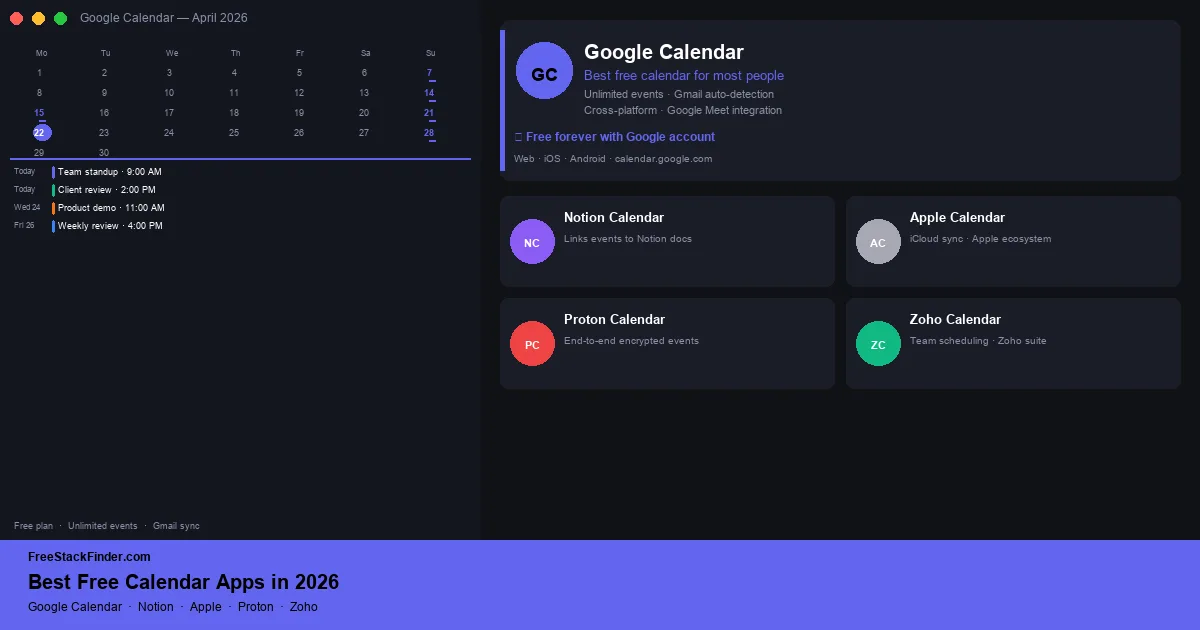
Use Google Calendar when Gmail and Meet already organize the day. Notion Calendar fits people who want keyboard-led scheduling beside Notion, and Apple Calendar stays out of the way across iPhone, iPad, and Mac. Choose Proton Calendar for encrypted events or Zoho Calendar when the team already uses Zoho. For tasks and notes beside the calendar, see our free note-taking apps guide.
Accounts and sharing drive calendar choice
Most people default to whatever calendar came with their phone or email account. That works for basic use, but it often means missing features that save real time: smart scheduling suggestions, cross-service event detection, better keyboard shortcuts, or stronger privacy defaults.
Google Calendar remains the default in 2026, but Notion Calendar is now a real option for professionals, and Proton Calendar offers privacy-focused scheduling. The right choice depends on whether you use Apple, Google, or Microsoft tools and whether you need a personal planner, a work calendar, or something that coordinates a small team.
Google Calendar works with the most other apps but requires a Google account. Apple Calendar works best on Apple devices and loses features elsewhere. Proton Calendar prioritizes encryption over integrations. Notion Calendar requires Notion, while Zoho Calendar offers team sharing at no cost inside a Zoho account.
A practical way to choose is by the place your appointments start. If most events arrive by email, Google Calendar usually wins. If your day is planned inside Notion pages, Notion Calendar removes extra switching. If your schedule is mostly personal and Apple-only, Apple Calendar is enough. If the event title itself is sensitive, Proton is worth the integration trade-off. If a small team already lives in Zoho Mail or CRM, Zoho Calendar keeps the workflow in one account.
Do not choose a calendar only by its visual layout. Before moving everything, create one recurring event, one shared calendar, one reminder, and one video meeting link in the candidate app. That test exposes the reminder, sharing, booking, conferencing, and import behavior used in normal scheduling.
Five free calendars compared
1. Google Calendar
Google Calendar is available at no charge with a Google account and connects directly to Gmail and Google Meet.
Google Calendar’s free account covers the core scheduling jobs most people need:
- Events, multiple calendars, and recurring schedules
- Gmail integration: automatically adds events from booking confirmations, flight receipts, and reservations
- Google Meet integration for creating video call links directly in events
- Shared calendars for coordinating with others
- Works on iOS, Android, and all major browsers
- One appointment-booking page for personal Google accounts
The limits mostly show up when you use it as a business scheduling system:
- Google Workspace (paid) adds admin controls, custom domains, and organizational sharing
- Some appointment booking features are more limited on the free tier versus Workspace plans
- No end-to-end encryption for event content
Use it if Gmail, Google Meet, or Google Workspace already sits at the center of your day. It fits personal calendars, school schedules, family calendars, and small-team coordination where shared calendars and invitations matter more than formal admin controls.
Google can add supported reservations and tickets from Gmail to Calendar when the account’s smart-feature settings allow it. Personal accounts can also create one booking page, as described in Google’s appointment-schedule documentation. Pair the calendar with a free note-taking app when meetings need longer notes.
2. Notion Calendar
Notion Calendar is a standalone calendar app from Notion, built on the foundation of the Cron calendar app (acquired by Notion in 2022): free for anyone with a Notion account.
Notion Calendar is free for Notion users and includes:
- Day, week, and month calendar views
- Google Calendar sync: displays your existing Google Calendar events
- Notion integration: link calendar events directly to Notion pages, tasks, and databases
- Keyboard-first design with shortcuts for creating and editing events quickly
- Zoom and Google Meet integration for video call links
- Available on Mac, iOS, Windows, and Android
The main constraint is that it is not a neutral standalone calendar:
- Requires a Notion account, not standalone without Notion
- Team calendar features are more developed on Notion’s paid plans
- Microsoft Outlook sync is limited compared to Google Calendar integration
It fits professionals who already use Notion for notes, tasks, project pages, or planning docs. If a calendar block often points to a draft, task database, or project brief, Notion Calendar makes that link visible instead of leaving the event isolated.
The keyboard-first interface supports creating and editing events without leaving the keyboard. Skip it if you mainly need family sharing, public booking pages, or Outlook-first coordination. For a deeper look at Notion’s features, see our free Notion alternatives guide, which includes Notion’s own free tier.
3. Apple Calendar
Apple Calendar is Apple’s built-in calendar app, available on every iPhone, iPad, Mac, and Apple Watch at no cost: syncs through iCloud.
Apple Calendar is free because it comes with Apple devices:
- Events across multiple calendars
- iCloud sync across supported Apple devices
- Siri integration for creating events with voice
- Shared iCloud calendars for family or team coordination
- Native integration with Apple Maps, Contacts, and Mail
- CalDAV support for connecting to Google Calendar or other external calendars
- Available on Mac, iPhone, iPad, and Apple Watch
The problems start when your schedule has to leave Apple hardware:
- Native sync is limited to Apple devices: support on Windows and Android is weak
- Fewer smart features compared to Google Calendar (no automatic event detection from email)
- Its web access lacks several controls found in Google Calendar
Choose Apple Calendar if your scheduling is personal or family-focused and everyone important is already on Apple devices. It is a weaker choice for mixed-device teams or users who spend most of their workday inside Google or Microsoft tools.
Apple Calendar is installed on current Apple devices and connects to iCloud, Siri, Maps, and Mail. Shared iCloud calendars cover basic family or small-group coordination without another scheduling account.
4. Proton Calendar
Proton Calendar is a privacy-focused calendar from Proton (the company behind ProtonMail), with end-to-end encryption applied to all event data.
Proton Calendar’s free tier is built around privacy:
- End-to-end encrypted events: Proton cannot read your calendar data
- Proton Mail integration for a fully encrypted email + calendar combination
- Up to three personal calendars on the free plan
- Mobile apps for iOS and Android
- Web interface at calendar.proton.me
- Import support for .ics files from other calendar apps
The trade-off is integration:
- Paid plans raise the calendar allowance and add sharing features
- No native integration with Google Calendar or Apple Calendar
- Fewer third-party integrations compared to Google Calendar
- Its integration catalog is narrower than Google Calendar’s
Use Proton Calendar when the contents of your schedule are sensitive: client names, confidential meetings, medical appointments, legal matters, or work you simply do not want processed by a larger ad-supported service.
Proton encrypts event details so the service cannot read them. The free plan currently permits three personal calendars, according to Proton’s calendar documentation. It fits existing Proton Mail users who value that data model more than a broad integration catalog.
5. Zoho Calendar
Zoho Calendar is a calendar tool within the Zoho productivity suite, free with any Zoho account: designed for individuals and small teams.
Zoho Calendar covers the small-team basics:
- Multiple calendars with color-coding
- Event invitations and attendee management
- Integration with Zoho Mail, Zoho CRM, and other Zoho apps
- Team calendar view for coordinating across a small group
- Recurring events and reminders
- Available on web, iOS, and Android
It is most useful when Zoho is already part of the business:
- Best value when used with other Zoho tools: less useful as a standalone calendar
- Fewer integrations with non-Zoho tools compared to Google Calendar
- The interface prioritizes scheduling controls over visual customization
Pick Zoho Calendar if your email lives in Zoho Mail, contacts live in Zoho CRM, or your team already uses Zoho’s broader app suite. In that setup, adding calendar scheduling inside the same account is cleaner than introducing Google Calendar only for meetings.
Zoho documents calendar creation, sharing, invitations, external-calendar sync, and mobile access in its getting-started guide. For teams also using free communication tools, compare the calendar workflow with Zoho Cliq and the other chat options in that guide.
Compare accounts, sharing, and booking
| Tool | Best for | Key strength | Works best with |
|---|---|---|---|
| Google Calendar | Most users | Gmail auto-events, cross-platform | |
| Notion Calendar | Notion users, professionals | Links calendar to work docs | Notion + Google |
| Apple Calendar | Apple users | Zero-setup iCloud sync | Apple |
| Proton Calendar | Privacy-conscious users | End-to-end encryption | Proton |
| Zoho Calendar | Zoho tool users | Team scheduling + CRM link | Zoho |
When to pay for a calendar app
The free options cover personal scheduling and basic sharing. Paid upgrades become relevant for advanced booking pages, payment collection, company administration, or more granular access controls.
Fantastical’s paid plan targets Apple users who rely on natural-language event entry and deeper task integration. Calendly’s paid tier makes sense once one booking type or a personal scheduling page is no longer enough. Individual calendars and simple scheduling rarely need either upgrade.
If the calendar is for a team, also check who can edit shared events and who can only view them. A free calendar can look complete until a contractor, family member, or client needs partial access. Permissions are where simple personal calendars and real work calendars start to diverge.
For personal use, test reminders on the device you carry. A calendar is only as good as the alert you notice during a busy day.
Google, Apple, Notion, Proton, or Zoho
Choose the calendar that works with the tools you already depend on: Google Calendar for Gmail, Notion Calendar for Notion, Apple Calendar for Apple devices, and Zoho Calendar for Zoho. Pick Proton Calendar when encrypted event data is the deciding requirement.
For most individual users, Google Calendar plus a free note-taking app covers the full planning workflow: events in the calendar, notes and tasks in a connected tool. If you are also using AI tools for scheduling and planning, see our free ChatGPT alternatives guide for AI assistants that can help with calendar management and scheduling tasks. For team communication that pairs with any of these calendars, see our free Slack alternatives guide.