The file handoff determines the editor
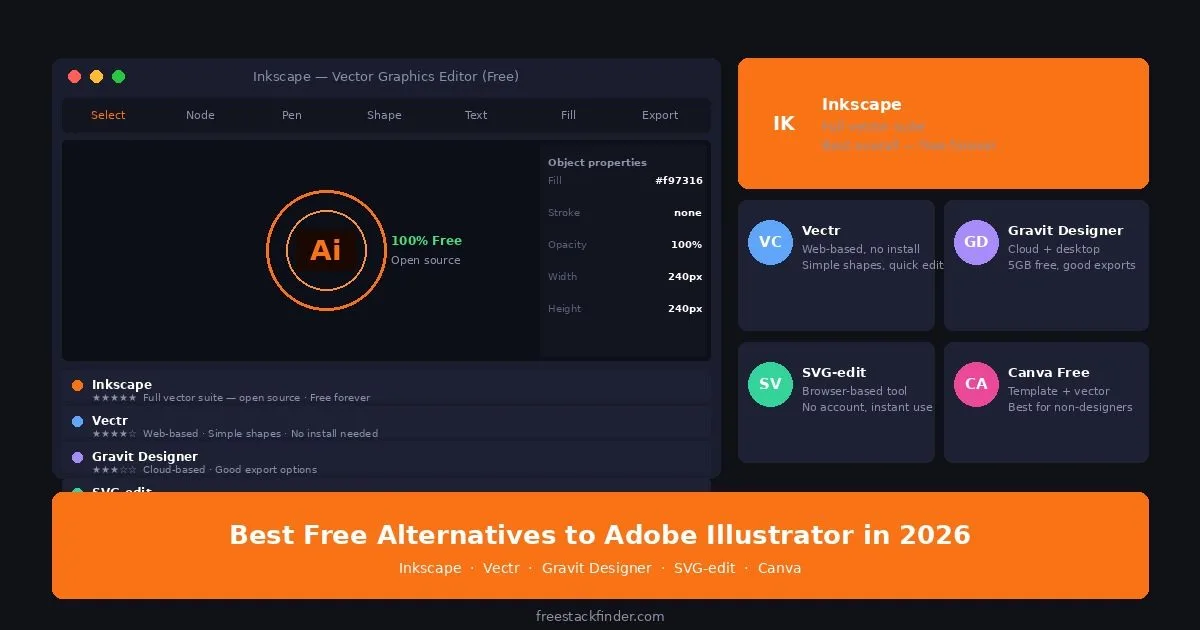
Inkscape covers vector illustration, logo design, icons, and SVG editing on Windows, macOS, and Linux. Vectr and SVG-edit handle smaller browser-based jobs, while LibreOffice Draw suits diagrams and page layouts. Canva Free fits template-led output rather than editable vector construction. Keep Illustrator when Adobe handoffs, plugins, or complex production files are part of the job.
SVG workflows do not always need Illustrator
Illustrator is sold through an Adobe subscription, which can be difficult to justify for occasional vector work. Before switching, separate the features you use from the file format your collaborators require. A free editor may cover paths and SVG export while still failing a workflow built around native .ai files, Adobe fonts, plugins, or Creative Cloud libraries.
Inkscape has been in active development since 2003. Its current toolset covers SVG paths, nodes, boolean operations, typography, layers, and print-ready exports, which is enough for many logo, icon, and technical illustration workflows. It still differs from Illustrator in .ai compatibility, artboards, cloud collaboration, and some complex-file performance. For template-based work that sits beside vector editing, see our free Canva alternatives guide.
Five ways to replace Illustrator
1. Best for open-source vector work: Inkscape
Inkscape is a free, open-source vector editor for illustration, logo design, SVG editing, icons, and print-ready artwork.
What you get without paying:
- Full SVG editing with Bezier curves, nodes, and paths
- Boolean operations (union, difference, intersection, exclusion)
- Text on path, flowing text, and advanced typography tools
- Object grouping, layers, and z-order management
- Filters, effects, and blend modes
- Import and export: SVG, PDF, EPS, PNG, JPEG, and more
- Extensions library for extra features
- Available on Windows, macOS, and Linux
- Free and open source, with no paid feature tier
The main catch:
- Its menus and shortcuts differ from Illustrator, creating a learning curve for switchers
- No native .ai file format support: Illustrator files must be exported as PDF or SVG first
- Artboard handling takes more steps than it does in Illustrator
- Performance on very complex files with thousands of objects can be slower
- No cloud sync or collaboration features built in
Inkscape fits logo design, icon sets, technical illustration, and SVG web graphics when Adobe-native handoffs are not required.
Where it goes further than the browser tools: Inkscape includes node editing, Bezier paths, boolean operations, extensions, and local files. Its interface and shortcuts differ from Illustrator, and complex production files still need testing. It is the first option to try for logo design, icons, technical illustration, and general SVG work.
2. Best for browser-based vectors: Vectr
Vectr is a lightweight browser editor for simple vector graphics. It runs without a desktop installation.
Inside the free version:
- Basic shapes, paths, and text
- Export as SVG, PNG, and JPEG
- Real-time collaboration (share a link, edit together)
- Page management for multi-page documents
- Browser-based access; check the current plan page before relying on account or export limits
What it is missing:
- No boolean operations or advanced typography, so it reaches its limit sooner than Inkscape
- No complex path editing or node manipulation
- Limited export options compared to Inkscape
- Slower for detailed illustration work: designed for simple graphics
A natural fit for: Non-designers who need to create simple vector graphics quickly, social media icons, basic logos, simple illustrations, without learning a complex tool.
Vectr runs in a browser without a desktop installation. Its smaller toolset suits a one-off icon or simple graphic, but it does not replace Inkscape or Illustrator for detailed vector work.
3. LibreOffice Draw: best for diagrams and page layouts
LibreOffice Draw is the vector drawing component included with the open-source LibreOffice suite. It is designed for diagrams, page layouts, and mixed text-and-shape documents rather than detailed illustration.
What it covers:
- Shapes, connectors, curves, text, layers, and object alignment
- Multi-page documents and diagrams
- Local files on Windows, macOS, and Linux
- PDF export and support for common image formats
- Integration with the rest of LibreOffice
Where it stops:
- Path editing and illustration controls are shallower than Inkscape’s
- No built-in cloud collaboration or version history
- Native files are not a substitute for Illustrator’s
.aiformat - The interface follows an office-suite workflow rather than a dedicated illustration app
A natural fit for: Flowcharts, technical diagrams, posters, and documents that combine text with vector shapes.
Draw is useful when page composition and connectors matter more than hand-built vector paths. The LibreOffice project distributes it with the rest of the suite at no cost.
4. SVG-edit: best for quick browser-based SVG editing
SVG-edit is an open-source, browser-based SVG editor that runs entirely in the browser with no server-side component: no account, no installation, no data sent anywhere.
Inside the free version:
- Basic SVG shape tools (rectangle, ellipse, line, polyline, path)
- Text tool with font selection
- Import and edit existing SVG files
- Export as SVG or PNG
- Can run offline as a web app with no server dependency
What it is missing:
- Limited feature set compared with Inkscape
- No layer management
- Basic typography and path tools
- Interface is minimal and exposes only the core SVG controls
A natural fit for: Developers and technical users who need to quickly view or edit SVG files without installing software. Also good for privacy-conscious users who do not want design files uploaded to any cloud service.
SVG-edit is open-source, works offline, and requires neither an account nor a cloud workflow. It fits developers who occasionally need to adjust an SVG icon without installing a larger design application.
5. Canva free tier: best for non-designers who want vector-adjacent results
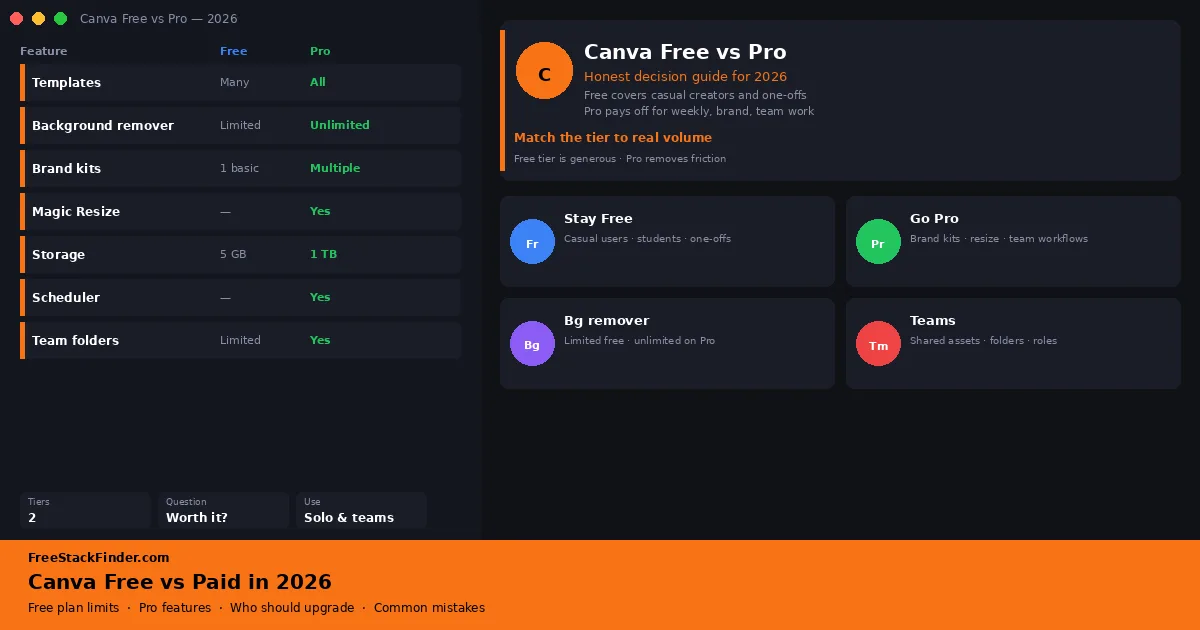
Canva is a template-driven design platform that includes basic vector shape tools alongside its large template library.
Inside the free version:
- Templates for logos, social media, presentations, and print
- Basic shape and line tools
- Text effects and styling
- Brand kit (limited on free)
- Export as PNG, JPEG, PDF, and SVG (SVG export requires Canva Pro)
- Access from browser and mobile apps
What it is missing:
- SVG export requires Canva Pro
- No true vector path editing: shapes are fixed, not fully editable bezier paths
- Not suitable for complex illustration or technical vector work
- Template-driven workflow is limiting for custom design
A natural fit for: Business owners, marketers, and non-designers who need professional-looking graphics quickly and are not concerned with producing editable vector files.
Canva cannot replace Illustrator’s path editing, typography control, or illustration tools. It can replace an Illustrator workflow built mainly around templates for social graphics, simple logos, and marketing material. Use Inkscape for vector construction and Canva for template-based output.
Compare paths, offline access, and exports
| Tool | Vector paths | Boolean ops | Offline | Export formats | Best for |
|---|---|---|---|---|---|
| Inkscape | ✅ Full | ✅ Yes | ✅ Yes | SVG, PDF, EPS, PNG | Professional vector work |
| Vectr | ⚠️ Basic | ❌ No | ❌ No | SVG, PNG | Simple web graphics |
| LibreOffice Draw | ⚠️ Basic | ⚠️ Limited | ✅ Yes | ODG, PDF, SVG | Diagrams and page layouts |
| SVG-edit | ⚠️ Basic | ❌ No | ✅ Yes | SVG, PNG | Quick SVG edits |
| Canva Free | ⚠️ Shapes only | ❌ No | ❌ No | PNG, JPEG, PDF | Non-designer templates |
Making the switch from Illustrator to Inkscape
The main switching cost is interface familiarity. Inkscape uses different keyboard shortcuts and organizes tools differently from Illustrator, so plan time to rebuild shortcuts and templates before moving deadline-sensitive work.
Key differences to know upfront: Inkscape uses XML-based SVG as its native format, which is different from Illustrator’s proprietary .ai format. Files you want to open from Illustrator should be exported as PDF from Illustrator first: Inkscape opens PDF and extracts the vector content. Inkscape’s equivalent of Illustrator’s Pen tool is the Bezier tool (B key). The node editor (N key) functions similarly to Illustrator’s direct selection tool.
Working with clients who use Adobe files: The format question matters most when you are delivering files to clients or print vendors who expect .ai or .eps files. Inkscape exports SVG and PDF natively, and many modern printers accept print-ready PDFs without issue. The problem arises when a client wants an editable .ai file to hand off to a different designer who uses Illustrator: SVG files can be opened in Illustrator but may not preserve every Inkscape-specific feature cleanly. For freelancers whose clients regularly request editable .ai deliverables, this is the clearest remaining reason to keep an Illustrator subscription. For freelancers who deliver final logos as SVG, PDF, and PNG (the most common format set for brand packages), Inkscape’s output is complete.
Inkscape and LibreOffice Draw solve different jobs. Inkscape provides deeper path operations and illustration controls. Draw is better suited to connectors, diagrams, and pages that combine text with shapes.
When Illustrator still earns its subscription
Illustrator remains the right choice for professional studios where files are shared between team members who all use Adobe products, where clients or printers require .ai compatibility, or where the extended feature set, perspective grid, variable fonts, advanced gradient mesh, Live Paint, is in regular use. For individual freelancers and studios that depend on these Illustrator features, the switching cost may outweigh the subscription cost.
Inkscape covers the core path, node, typography, and export work needed for logos, small-business brand assets, and learning vector design. Keep Illustrator when native .ai exchange, Adobe integrations, or its specific print workflow is part of the job.
Inkscape for depth, browser tools for smaller jobs
Choose Inkscape for path editing, illustration, and SVG work without an Adobe subscription. Vectr or SVG-edit fit occasional browser-based edits with a smaller toolset. Use LibreOffice Draw for diagrams and page layouts. Canva Free suits template-based output, but it does not replace Illustrator’s vector construction controls.
For imagery to complement your vector work, photography, textures, and backgrounds, see our guide to the best free stock photo sites in 2026. For typography in your designs, see our guide to the best free font websites in 2026. For UI and interface design, see our guide to free Figma alternatives. For 3D and CAD work that pairs with vector technical drawings, see our guide to free FreeCAD alternatives.