Canva Free can produce finished social posts, invitations, resumes, and presentations. Pro adds premium assets and shortcuts for work that repeats across designs. The useful question is which paid feature would remove a recurring step from your current workflow.
This guide maps Canva’s free-plan limits to the workflows that trigger an upgrade. The decision comes down to design volume, premium assets, brand controls, exports, and team approvals.
The upgrade rule
For most casual users, someone making a few social posts a month, the occasional invitation, a one-off resume, or simple presentation slides, Canva Free is enough. You can finish almost any single project on the free plan if you are willing to pick from free templates, swap out a couple of premium elements, and live without one-click background removal.
Canva Pro is worth considering when your workflow involves repeated background removal, shared brand settings, or frequent resizing across formats such as an Instagram post, story, reel cover, YouTube thumbnail, and Pinterest pin.
If you design only occasionally, start on the free plan. For recurring business work, compare the current subscription price with the steps you would otherwise repeat by hand. The sections below identify the limits that most directly change that calculation.
Canva adjusts plan features, AI credits, storage, and team packaging over time. Use this guide for the decision logic, then confirm the current Canva plan page before upgrading for one exact quota or feature.
Canva Free vs Paid comparison
The table below focuses on the boundaries that drive upgrade decisions, not the marketing-page feature list.
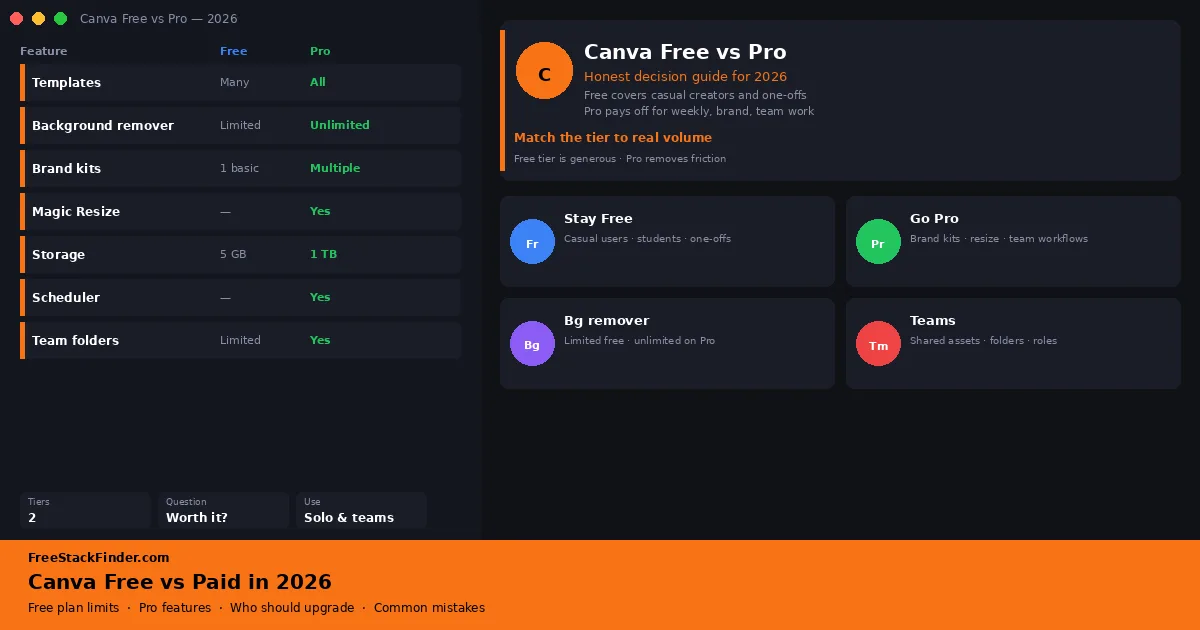
| Feature | Canva Free | Canva Pro |
|---|---|---|
| Templates | Large free library, premium ones marked with a crown | Full premium template library |
| Stock photos & elements | Free assets, with premium items marked in the editor | Full premium asset library |
| Background remover | Limited or trial access, depending on current terms | Included as a paid workflow |
| Brand kits | Basic brand controls with limits | Deeper brand controls with logos, colors, fonts |
| Magic Resize | Not included | One-click resize across formats |
| Cloud storage | Limited free storage | More cloud storage |
| Folders & organization | Limited folder structure | More folders and team organization |
| Scheduler / Content Planner | Not included | Schedule posts to social channels |
| Team collaboration | Basic sharing | Roles, comments, shared brand assets |
| Best for | Casual creators, students, occasional projects | Solo professionals, small businesses, marketers, teams |
Canva regularly adjusts what is included on each tier, so treat any specific quota number as a moving target rather than a contract. The main difference has been consistent for years: free covers the canvas and most templates, while paid saves repeated work across many designs and assets.
What Canva Free is good enough for
Canva Free covers several common design jobs. The free plan is likely enough when your workflow looks like the examples below.
One-off personal projects. Birthday invitations, a school-event poster, a community noticeboard flyer, holiday cards, or a class presentation can all start from free templates. Filter the asset search to free items before settling on a layout.
Light social posting. An occasional Instagram post, LinkedIn graphic, or Facebook event banner does not require automated resizing or shared brand controls.
Single-use professional documents. A resume, one-page proposal, report cover, or basic business card can be completed on the free plan when its template and assets are also free.
Learning the tool. Start free while learning the editor and building the first designs. Upgrade only after a paid feature becomes a repeated requirement.
Light photo edits. Cropping, text overlays, basic filters, and fitting an image into a template are available without a Pro subscription. If background removal or AI editing is the reason you are considering Pro, check the current free allowance first because Canva has changed how these tools are packaged.
Start with a complete free-plan export. It reveals whether the chosen template, assets, and output format are available before you commit to a subscription.
Where Canva Free starts to feel limited
The free plan has a clear ceiling. These are the limits most likely to affect recurring work.
Background removal at volume. Pro makes background removal available as a recurring workflow. Check the current free allowance for occasional use, then compare Pro with a dedicated image editor if product photos or cut-out portraits make this a routine task.
Brand consistency across many designs. Paid brand controls become relevant when several people need the same palette, logo variants, fonts, and templates. On Free, those settings may need to be applied or shared manually.
Resizing across formats. Magic Resize creates variants from one source design. On the free plan, each format needs a separate layout, so the paid feature matters most when the same campaign repeatedly ships to several channels.
Storage and organization can become constraints if you upload many high-resolution photos or video clips. Folder limits also matter once you have dozens of brand assets, client folders, or campaign archives to keep tidy.
Scheduling directly from Canva can save time when the rest of the work already happens there. The free plan does not include its Content Planner.
Team collaboration. Free accounts can share individual designs. Paid team plans add broader brand, folder, role, and approval controls, with packaging that varies by plan.
If none of those limits affect your work, stay on the free plan.
Who should stay on Canva Free
Stay on the free plan if you fit any of these profiles:
- Casual personal users making invitations, school projects, or the occasional flyer
- Students designing class slides, posters, or a resume
- Hobbyists running a personal social account or blog with light visual needs
- Anyone learning Canva who has not yet encountered a recurring paid-feature limit
- People who already use another photo or layout editor and need Canva only for an occasional template
A useful self-check is to note every paid feature you reach for during a normal month. Upgrade when the same missing feature repeatedly delays finished work, not because an arbitrary export count has been crossed.
Who should consider Canva Pro
Consider upgrading if any of these descriptions match how you work now, not how you hope to work later.
- Small business owners producing recurring marketing assets with one brand system
- Solo marketers and creators publishing the same campaign in several aspect ratios
- Freelance designers producing repeatable client assets that use paid templates or background removal
- Small teams that need shared brand assets, folders, roles, and comments
- Educators and training teams producing recurring slide decks, worksheets, and handouts
- Online sellers creating product mockups, listing graphics, and packaging inserts across many listings
In each case, the relevant value is a repeated production step that the paid plan removes.
Common mistakes when deciding between Free and Paid
Most upgrade regret comes from misreading the wrong feature as the deciding factor. The frequent mistakes:
Mistake 1: Upgrading for one premium template. Check whether a free layout can produce the same structure before subscribing. A template used once rarely justifies a recurring plan.
Mistake 2: Upgrading only for storage. Check which files consume the allowance before paying. Raw video and high-resolution source photos may fit better in a separate storage service; see our free cloud storage comparison for alternatives.
Mistake 3: Upgrading because of one-off background removal. If you remove a background once a month, check Canva’s current free allowance and compare it with free alternatives for occasional jobs. The upgrade only really matters when you do this repeatedly.
Mistake 4: Underestimating brand kits. Re-entering colors, fonts, and logos across recurring designs creates avoidable work. Compare that repeated setup with the current subscription price before deciding whether shared brand controls justify the upgrade.
Mistake 5: Ignoring premium elements until you commit. Some people design entire projects, fall in love with the result, and only at export realize half the elements are paywalled. The fix is small: filter to free elements early, or budget for paid assets instead of a full subscription if you only need them rarely.
Mistake 6: Picking based on price alone. Compare the subscription with the time spent replacing premium assets, resizing designs, and applying brand settings by hand. Weekly design work may justify the plan; two projects a year usually will not.
Practical examples by workflow
The student making class slides and a resume
Stay on Canva Free.
You will use Canva in bursts: a few weeks before a project, then nothing. The free plan covers slide templates, resume templates, posters, and infographics with room to spare. Pair it with free font websites for typographic variety.
The hobby creator running a small Instagram
Stay free while one square format covers the work.
A square post a few times a week fits the free workflow. The paid resize tools become relevant when the same design needs recurring story, reel, and Pinterest versions. Until then, free stock photos and the free template library cover the gap.
The small business owner doing their own marketing
Choose Pro only when paid tools remove repeated weekly steps.
Weekly Instagram posts, email headers, flyers, and product graphics can make background removal, resizing, and brand controls recurring requirements. If those steps stay occasional, the free plan remains enough. For publishing, compare the options in our free social media scheduling tools guide.
The freelance designer producing simple branded assets
Choose Pro for repeated brand work, with a separate vector or photo editor when needed.
Pro is right for production speed. The caveat: do not let Canva be the only tool in your kit if your clients ever need vector logos, complex illustration, or print-press files: for that work, look at free Illustrator alternatives or free Photoshop alternatives.
The team of three running a small agency or non-profit
Compare Pro or Teams when shared brand assets and approvals become routine.
Shared brand assets and team folders become relevant when three people need the same current logo, colors, templates, and approval path. Check the current seat and collaboration terms before choosing between Pro and Teams.
The job seeker building one resume
Stay on Canva Free for a single resume and cover letter.
A single resume and a matching cover letter do not need a subscription. A free plan plus one of the dedicated free resume builders is more than enough.
The maker of simple talking-head videos
Stay free until multi-format video output becomes a weekly task.
Canva can assemble short social clips, intros, and overlays. Editing-heavy work belongs in a timeline editor; the free open-source video editors guide compares those options. Canva Pro becomes relevant when weekly publishing requires repeated resizing across several aspect ratios.
The Etsy or print-on-demand seller
Choose Pro when product-image cleanup and branded variants recur across listings.
Listing photography, mockups, packaging inserts, and shop banners create repeated layout and image-cleanup work. Pro makes sense when background removal, premium assets, and brand controls are requirements across many listings rather than one-off tasks.
Check these Canva alternatives before paying
Before committing to Canva Pro, identify the bottleneck. The free tools below cover several jobs that Canva handles only partially.
- Adobe Express covers general-purpose template design and quick exports.
- Photopea, included in the free Photoshop alternatives guide, handles layered image editing rather than template-driven layouts.
- Microsoft Designer is useful when Microsoft integration and AI-assisted starting drafts matter.
- Free Figma alternatives focus on collaboration for UI and product design.
- Free font websites and free stock photo sites can supply assets without a Canva Pro subscription.
Before paying, complete one representative project with Canva Free and any external asset source you would realistically maintain. Note which blocked steps recur; those are the features that should justify an upgrade.
Stay free until the same problem repeats
Canva Free can handle occasional graphics with its included templates and assets. The paid plan changes access to assets, background removal, brand controls, resizing, storage, and publishing tools; it does not automatically improve the design decisions in a project.
Canva Pro is worth paying for when design is part of your routine, not your hobby. If you publish weekly, run a small business, work with a team that needs shared brand assets, or repeatedly need background removal, brand kits, and resizing, the paid plan may save more time each month than it costs.
Match the tier to how often the work recurs. Stay free for occasional projects, then upgrade when premium assets, resize tools, or brand controls become routine requirements.
Once you have picked your tier, the rest of your design stack matters more than any one tool. Pair Canva with our guides to free Canva alternatives, free stock photo sites, and free font websites for the assets that quietly do most of the design heavy lifting.