File synchronization and backup solve different recovery problems.
If your laptop dies, a synced cloud folder is helpful. If ransomware encrypts everything, a file gets accidentally deleted, or a bad sync wipes a folder, “my files were mirrored somewhere else” is not always enough. A real backup strategy needs versioning, separation, or both.
Version history, a separate destination, and a tested restore determine which failures a free setup can recover from.
Sync is not the same as backup
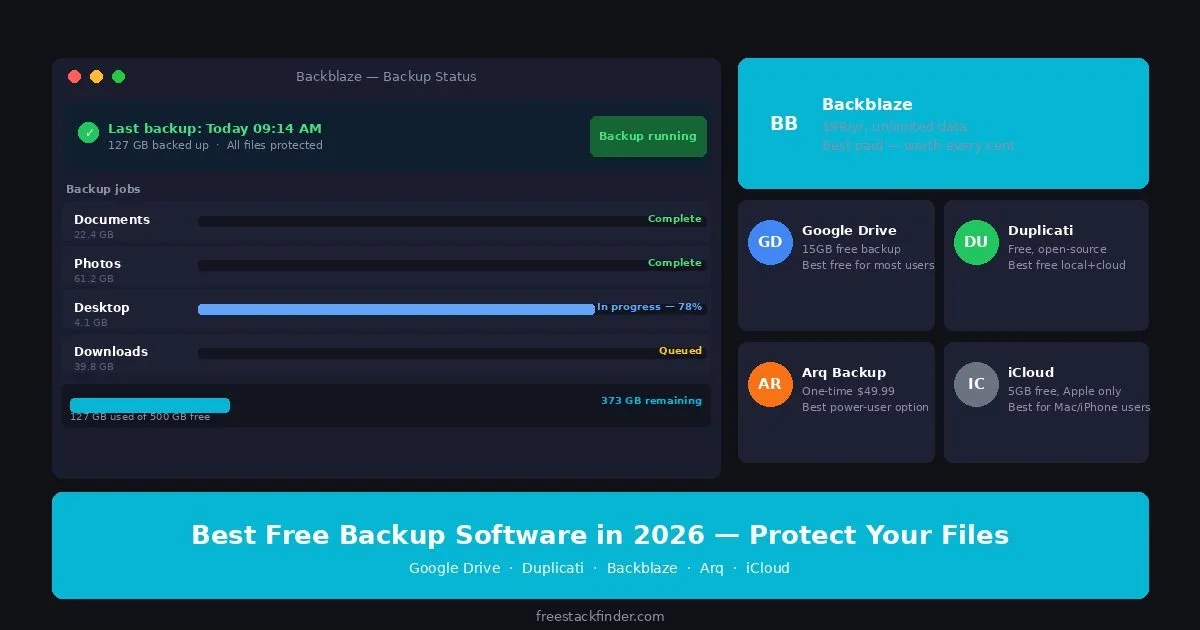
Google Drive can keep an offsite copy of documents and active folders, but it is sync-based protection rather than full backup software. Duplicati creates scheduled, encrypted backups to a destination you control. Once the dataset exceeds free cloud limits, Backblaze Personal Backup is a paid option for one computer. Apple users should enable iCloud Backup, then check whether its 5GB allocation can hold the device backup.
Start by deciding whether you need simple file backup or full system backup. A synced folder can protect active documents from laptop failure, but it is weaker for accidental deletion, ransomware, and fast disaster recovery. A scheduled backup tool with a separate destination is more work, but it behaves more like real backup.
Where a no-cost backup plan fits
Free storage and open-source backup tools can cover:
- protecting important documents and small photo libraries
- giving you an offsite copy without much setup
- covering one piece of a 3-2-1 strategy
The setup becomes restrictive for:
- large-capacity archival storage
- fast full-system disaster recovery
- team-wide backup management
- long version history across big datasets
A small file collection can combine a sync service, a scheduled backup job, and a local drive instead of expecting one tool to cover every recovery path.
For the cloud destinations that pair best with backup tools, see our free cloud storage comparison.
Five tools for local and offsite backups
1. Google Drive: best free offsite copy for documents and active folders
Google Drive for desktop can synchronize selected folders and send photos and videos to a Google account. The account includes 15GB shared across Drive, Gmail, and Google Photos, so check existing usage before choosing folders.
This is useful for current documents that need browser and mobile access. It is not a full-system backup, and synchronized deletions or overwrites need to be caught inside Google’s current recovery window. Use a separate backup job when retention is important.
2. Duplicati: best free backup software for scheduled encrypted backups
Duplicati is a free, open-source application for scheduled, incremental backups. Its project documentation covers AES-256 encryption, Windows, macOS and Linux support, and destinations that include local disks and cloud storage.
Configuration and restores take more attention than simple file sync. Define the schedule, retention, destination credentials, and encryption passphrase deliberately, then test a restore. Keep the passphrase outside the backed-up computer because an encrypted backup cannot help if its only key is lost with the device.
3. Backblaze Personal Backup: paid option for larger datasets
Backblaze Personal Backup is the paid boundary in this guide. Its current pricing page lists $99 per year for unlimited user-created data on one computer, and its version-history documentation states that 30 days is included with an option to enable one year at no additional cost.
It becomes relevant when a photo, video, or work archive will not fit a practical free allowance. Compare its restore methods and exclusions with the dataset rather than splitting one backup across several unrelated free accounts.
4. iCloud Backup: best built-in backup for Apple users
iCloud Backup is Apple’s built-in backup layer for iPhone and iPad, while iCloud Drive synchronizes files across Apple devices. Apple includes 5GB of iCloud storage, shared by backups, photos, files, and other synchronized data.
Enable the device backup, then inspect its estimated size. The free allocation may not fit even one device once photos and messages are included, and iCloud is not a complete Mac backup strategy. Pair it with Time Machine or another independent Mac backup.
5. Duplicacy: best for advanced users and NAS-oriented setups
Duplicacy is a backup tool with deduplication and support for self-managed storage. Its license page describes the command-line edition as free for personal use, while the graphical interface uses a commercial license after its trial.
Choose it when repositories, command-line operation, and destination management are already familiar. Duplicati provides a more approachable browser interface for a first scheduled encrypted backup.
Compare destinations, scheduling, and encryption
| Tool | Backup style | Best for | Main limitation |
|---|---|---|---|
| Google Drive | Continuous sync/offsite copy | Everyday documents and active folders | Sync is not full backup |
| Duplicati | Scheduled encrypted backup | Users who want real free backup software | More setup and rougher restore workflow |
| Backblaze | Paid unlimited cloud backup | Large personal datasets | Not free, one computer per subscription |
| iCloud Backup | Built-in Apple backup | iPhone and iPad users | Free 5GB runs out quickly |
| Duplicacy | Advanced self-managed backup | NAS and power users | Command-line oriented free path |
A three-layer starting point
One no-cost arrangement is:
- Use Google Drive or iCloud for an offsite copy of selected active files.
- Use Duplicati to create a scheduled encrypted backup at another destination.
- Keep a local external drive for a faster restore path.
Each layer addresses a different failure. Test a restore from the scheduled job before relying on it.
Keep one local copy and one offsite copy
Use Google Drive for a basic offsite copy of active documents and Duplicati for scheduled backup software. Move to Backblaze when the dataset no longer fits a practical free storage plan. On Apple devices, enable iCloud Backup even if a second service is needed later.
The cloud destination provides separation from the computer, while a local external drive shortens a large restore.
Add a local restore copy
A portable SSD or external drive provides a faster local restore path alongside the offsite copy.
Shop portable SSDs on Amazon ->